FixMyPics - Restore Old Photos
- 4.3
- Rating
- 1.00M
- Installs
- Free
- Price

 Analysis by App-foxy
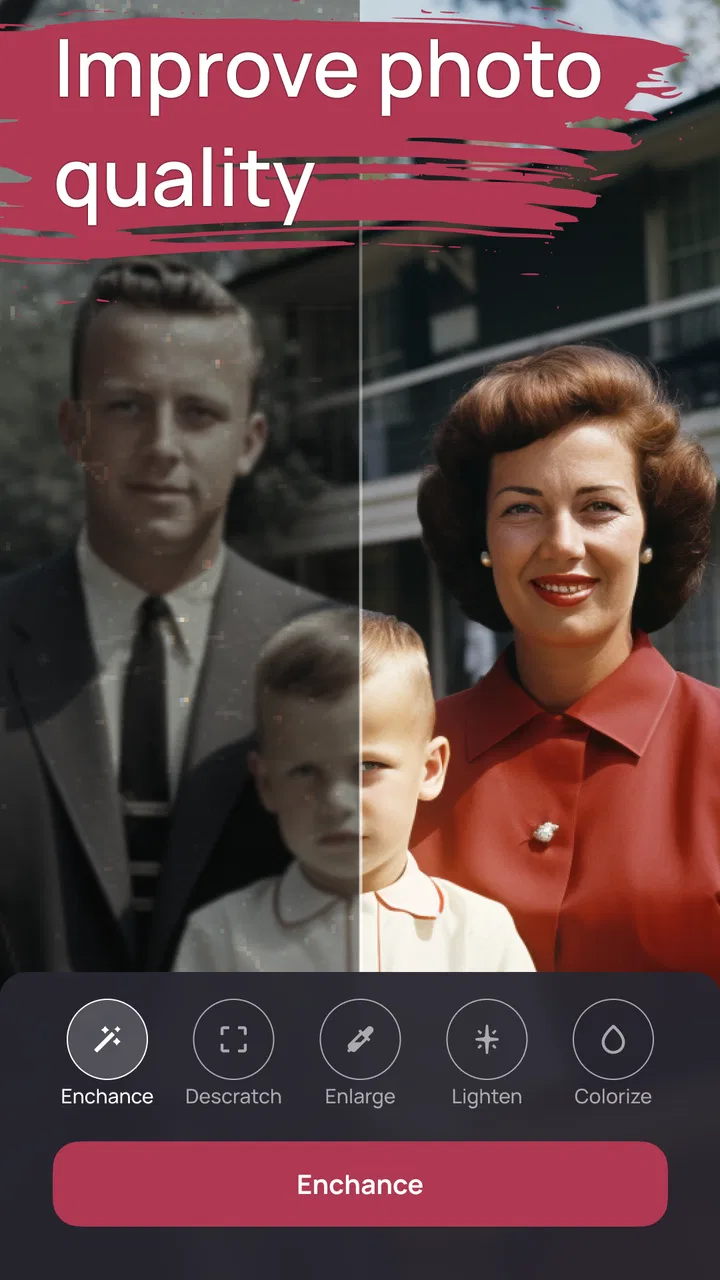
Restoring an old family picture is usually more emotional than technical. A faded portrait, a scratched wedding photograph, or a childhood snapshot can carry a lot of meaning even when the paper has yellowed and the details have softened. I tested FixMyPics with that kind of task in mind, focusing not only on what the finished image looks like, but also on how practical the process feels on an ordinary phone. Developed by Kallossoft, this free photography app is built around repairing damaged pictures and adding color to monochrome images.
My overall impression is that it is most useful as a quick restoration companion rather than a complete replacement for professional photo editing. It gives casual users a simpler route into old-photo repair, especially when the original image is available only as a phone scan. At the same time, the quality of the result depends heavily on the source picture, and some restorations need a human eye afterward. The app is at its best when it saves you from a complicated editing workflow, not when you expect it to perform miracles on a badly blurred photograph.
How the restoration experience feels in everyday use
The first thing I noticed is that FixMyPics is aimed at a very specific kind of user: someone who wants to improve a meaningful picture without learning a full desktop editor. The store identifies it as a free app for Everyone, and that matches the approachable nature of the task. You do not need to understand layers, masks, curves, or manual cloning before trying to rescue a family image.
You May Also Like

 Blood Strike: 2.5 Anniversary
Blood Strike’s Loadouts Turn Every Drop Into a Tactical Gamble
A close look at Blood Strike’s custom loadouts: how fast access to signature weapons reshapes its battle royale rhythm, rewards preparation, and narrows the gap between fights.

 Pandora - Music & Podcasts
Pandora’s Music Is Easy to Start, but Harder to Recover
Pandora’s strength is its low-effort path from a seed to a station. Its weak spot is how much confidence it asks you to place in connection, setup, and quiet recovery.

 8 Ball Pool
 Is Built on Rivalries, Rematches, and Routine
A close look at the rivalries, rematches, shared routines, and unanswered safety questions that turn a quick pool match into a persistent mobile community.

 Samsung Music
’s Quiet Strength Is Playing What You Already Own
Its reach comes less from spectacle than from dependable access to a personal library. That simplicity is both the app’s strongest retention engine and its ceiling.

 AccuWeather: Weather Radar
AccuWeather Review: A Quick, Clear Forecast for Everyday Decisions
For everyday plans, the best forecast is the one you can understand quickly. AccuWeather makes rain timing, radar, and local conditions easy to act on, with a few trade-offs.

 Hill Climb Racing
Why Hill Climb Racing Still Turns Crashes Into One More Run
A tiny car, a bumpy hill and one more upgrade: Hill Climb Racing keeps resurfacing because its simple chaos makes every near-miss feel personal.
More From Our News Desk



A realistic use case is scanning a small album page with your phone before a family gathering. Perhaps the picture has dust marks, weak contrast, and a face that looks too dark. Instead of opening a general-purpose editor and searching through a long list of tools, I would use this app as a first pass. The aim is to create a cleaner, more shareable version quickly, then decide whether the result is good enough to keep or worth refining elsewhere.
The restoration and colorization purposes are related but should not be treated as the same job. Repairing a damaged black-and-white image can make edges and facial details easier to see, while colorizing it introduces an interpretation of how the scene might have looked. That distinction matters. A repaired monochrome photograph can remain historically faithful; a colorized version may feel more vivid but is not necessarily an accurate record of the original colors.
I found that expectation-setting makes a major difference. A clear, well-lit scan gives the app more useful information to work with. A tiny image photographed at an angle, covered by reflections, or damaged across important facial features gives it much less to work with. Before processing, I would crop away the album edges, straighten the picture, and retake the shot near a window without harsh glare. Those small steps can matter more than repeatedly processing the same poor source.
What affects perceived speed
FixMyPics feels like the kind of app where speed is tied to the work being requested and the condition of the image. A simple correction on a modest photograph should feel more manageable than asking for a detailed reconstruction of a large, heavily damaged picture. I would not judge it only by how quickly the first screen changes; the useful question is whether the final image is worth the wait and whether the app keeps the process understandable.
For occasional use, the workflow is reasonably easy to justify. I can choose one picture, start with the restoration goal, and inspect the outcome instead of building a project from many separate editing steps. That simplicity is a genuine advantage over traditional editors, where the user has to decide which tool should address each scratch or faded area.
There is also a practical speed tip that is easy to overlook: prepare a small batch of carefully selected images rather than sending every old photograph through the process at once. Pick the pictures that matter most, make sure each is readable, and compare the results one by one. This reduces wasted processing and makes it easier to notice when colorization has produced an attractive image that is less faithful than the original.
What happens during heavier use
Heavy use in this case does not necessarily mean gaming-style continuous activity. It means working through a stack of family photographs, trying several versions of the same image, or processing pictures that are large, noisy, or severely damaged. That is where I would be more cautious about expecting a consistently instant experience. Restoration is a demanding task by nature, and the phone has to handle both the image and the app’s processing workflow.
If I were preparing a collection for printing, I would not wait until the last minute. I would process a few representative images first, inspect faces, clothing, background lines, and small text, and only then continue with the rest. This is not just about speed. It prevents a common mistake: discovering after a long session that the chosen treatment gives every picture an artificial look.
Another useful workflow is to keep the original scan untouched and treat each processed image as a separate copy. That gives me a safe comparison point and makes recovery straightforward if the result is too smooth, too colorful, or otherwise unlike the source. For sentimental photographs, this matters more than squeezing every possible convenience out of the app.
Resource demands are also worth considering in practical terms. A phone with little free storage or limited remaining battery is not the ideal place for a long restoration session, particularly when several high-resolution images are involved. I would work in shorter sessions, review the output as I go, and avoid opening the app with a large queue when the device is already busy with other tasks. These are sensible precautions rather than claims about a specific memory requirement.
Reliability and recovery when a result is not right
For me, reliability is not only whether an app opens. It is whether I can trust the process enough to use it on pictures that cannot be recreated. FixMyPics is easier to trust when I remember that the original should remain separate. I would scan or photograph the source, preserve that file in the phone’s normal photo storage or another backup location, and only then experiment with restoration or color.
The most important recovery habit is to compare before and after rather than accepting the first attractive result. An image can look sharper at a glance while losing subtle facial features. Color can make a portrait feel more modern while introducing tones that were never present. Looking at the original beside the processed version helps me catch those changes before sharing or printing.
I would also avoid using a single processed copy as the final archive. If the app gives me a promising result, I would save it clearly as an edited version and retain the untouched scan. This is especially important for historical family images, where an imperfect original may be more valuable than a technically cleaner interpretation.
The app’s public reception suggests that many people find the concept useful: it has an average rating of 4.3 from around 57 thousand ratings, along with more than 700 written reviews. I read that as encouraging evidence of broad appeal, not as a guarantee that every photograph will turn out well. Image restoration is unusually dependent on the material being processed, so one user’s excellent portrait may be another user’s disappointing landscape.
Device limits and compatibility
FixMyPics requires Android 8.0 or later, which keeps it available to a wide range of devices while still excluding older phones. If your handset meets that requirement, the more relevant question is how comfortable it is for image work. A newer phone will generally be a better place for repeated editing than an aging model with limited storage, a nearly full battery, or a small screen that makes detail inspection difficult.
The screen size can affect judgment more than people expect. A repaired face may look convincing when viewed as a small preview but reveal strange edges when enlarged. I would always inspect important areas at a useful zoom before deciding that an image is ready for a frame or a large print. The app can simplify restoration, but it cannot remove the need for visual checking.
Storage planning is another quiet constraint. Keeping the original scan, a restored version, and perhaps a colorized alternative means that one photograph can become several files. For a handful of images this is easy to manage, but a large family archive deserves a more deliberate naming and backup routine. I would use names that distinguish the source from the edited copy, especially if the pictures are going to be shared among relatives.
FixMyPics is free to install, with optional in-app purchases listed from $0.99 to $79.99 per item. That range makes it sensible to explore the basic experience first and decide whether the app’s results justify any paid choice for your particular photographs. I would not pay simply because an image is emotionally important; I would first check whether the improvement is visible, whether faces remain natural, and whether the output suits the intended use.
Where it beats a normal photo editor
The main alternative is a general photo editor. Those apps are often better when I want precise control over brightness, contrast, cropping, selective corrections, or a carefully managed final print. They can also be preferable when I already know how to repair scratches manually and want to decide exactly which parts of the image change.
FixMyPics has a different advantage: it narrows the problem. Instead of asking me to assemble a restoration technique from separate tools, it focuses on old-photo repair and colorization. That makes it a better starting point for someone who wants a result without studying an editing manual. It is also more convenient for a quick family-sharing task, such as cleaning up a portrait before sending it to relatives.
The trade-off is control. If an automatic result changes a face, invents an odd background texture, or gives clothing an implausible shade, I may need another editor to correct it. For professional archival work, large exhibition prints, or images containing important documentary details, I would prefer a workflow with more manual oversight. For casual restoration and personal memories, the simpler approach is often the more realistic one.
Three practical techniques that improve the outcome
First, photograph the original as a flat object rather than holding it loosely in your hand. Keep the phone parallel to the picture, remove distracting borders through cropping, and avoid reflections. This reduces distortions that can otherwise be mistaken for damage. If the photograph is behind glass, changing the angle slightly or using softer light may help more than any later adjustment.
Second, process a representative image before committing to a whole album. Choose one portrait, one group picture, and one scene with fine background detail if those are the types you have. This reveals whether the app suits your collection. A treatment that handles faces nicely may not preserve thin lines, signs, or patterned clothing as well.
Third, use colorization as a creative version, not automatically as the master copy. Keep the restored monochrome image and the colorized image separately. This gives you both a conservative preservation option and a more lively version for social sharing. It also prevents a guessed color from quietly replacing the historical character of the photograph.
A fourth habit is to judge the image at its intended destination. A result that works in a messaging app may not hold up on a large print. Conversely, a small amount of softness may be perfectly acceptable for a family slideshow. Decide whether the goal is private viewing, online sharing, or physical printing before spending time on fine comparisons.
Who should use it, and who should look elsewhere
I would recommend FixMyPics to people with old snapshots who want an approachable first attempt at restoration. It makes particular sense for relatives digitizing albums, users who are uncomfortable with complex editors, and anyone who wants to compare a repaired image with a colorized interpretation without building the process from scratch. The fact that it has passed one million installs also shows that this is not an obscure experiment with no established audience.
I would be more cautious about recommending it as the only tool for archivists, photographers, or anyone preparing historically sensitive material. If exact color accuracy, controlled retouching, or print-grade consistency is the priority, a more manual editor or a specialist restoration service may be the better choice. The same applies when the source is extremely small or when damage covers the eyes, mouth, text, or other details that must remain accurate.
People who dislike automatic-looking edits should also approach it with modest expectations. The convenience comes from letting the app make decisions, and those decisions will not always match your memory of the scene. I would use it to generate a useful candidate, then inspect it critically rather than assuming that a smoother or brighter image is automatically a truer one.
Current software context and everyday value
The app was released on August 7, 2021, and its current version is 2.0.5. That gives the project some history while keeping the review relevant to the version available now. I would still update through the normal app channel when an update is offered, especially before processing an important collection, because image tools can change in small ways between versions.
For a free photography app, its value is easy to understand: it puts a specialized old-photo workflow within reach of ordinary phone users. The strongest benefit is not that every result will be perfect. It is that the first useful attempt is less intimidating than opening a professional editor and wondering where to begin.
My performance verdict is therefore measured. On a compatible phone, I would expect the experience to be most comfortable for individual projects and short sessions, with careful source preparation and regular checking. I would not treat it as a reason to process an entire archive blindly or as a substitute for high-control restoration. Use it as a fast, accessible starting point, preserve your originals, and let the quality of each photograph decide whether you continue in the app or move to a more precise tool.
After trying it with that mindset, I see FixMyPics as a practical choice for personal memories rather than a universal restoration solution. It can turn a neglected photograph into something easier to share and appreciate, and its focus is friendlier than the crowded toolboxes of general editors. The best results come from combining its convenience with your own judgment: prepare a clean source, compare versions, keep backups, and remember that a believable image is more valuable than an aggressively processed one.
FAQs for FixMyPics - Restore Old Photos
01What is FixMyPics - Restore Old Photos used for?
FixMyPics - Restore Old Photos is designed to improve and repair older or damaged images using automated enhancement tools. It can help sharpen blurry details, reduce noise, improve lighting, and add color to some black-and-white pictures. It is especially useful for restoring scanned family photographs, although the final result depends heavily on the original image quality and the type of damage present.
02Does FixMyPics automatically restore every old or damaged photo?
The app provides automated restoration, but it cannot perfectly repair every photograph. Images with severe scratches, missing sections, extreme blur, or very low resolution may still contain visible imperfections after processing. In testing this type of restoration, results are generally strongest when the photo is reasonably clear and evenly lit. Users should treat the output as an enhancement rather than a guaranteed professional restoration.
03Is FixMyPics - Restore Old Photos free to download and use?
FixMyPics may be available to download at no initial cost, but some restoration tools, export options, or advanced features can require in-app purchases or a subscription. Before starting a trial or confirming payment, check the current pricing, renewal terms, and cancellation instructions shown in the app store. Availability and included features may also vary between Android and iOS versions.
04Does FixMyPics require an internet connection to restore photos?
Many AI-based photo restoration apps process images through online servers, so FixMyPics may require an active internet connection for at least some features. This can affect processing speed, mobile data usage, and the ability to work while offline. Users handling private family photographs should also review the app’s privacy policy to understand how uploaded images are processed, stored, and deleted.
05Will FixMyPics keep the original photo unchanged?
The restoration process normally creates an enhanced copy rather than permanently replacing the original image, which allows you to compare the result with the source file. Even so, it is wise to keep an independent backup before editing, particularly when working with irreplaceable scans. After processing, review the image carefully for unnatural facial details, excessive sharpening, color changes, or other AI-generated artifacts.
Pros
- Simple tools make basic photo restoration easy for beginners.
- Colorization can bring extra life to faded black-and-white pictures.
- Works well for quick edits without requiring advanced editing skills.
- Useful for improving scanned family photos before sharing or printing.
- Multiple enhancement options let you compare different restoration results.
Cons
- Results may look artificial when photos are heavily damaged or blurry.
- Some features or exports may require a subscription or in-app purchase.
- Processing quality can vary depending on the original image resolution.
- Privacy-conscious users may hesitate to upload personal photos for processing.
- Restored images may still need manual editing for precise corrections.

FixMyPics - Restore Old Photos
Gallery